
Team Management
A team license lets one person pay for MailMerge365 for a group of colleagues. The license includes a number of seats, which you give to people in your organization. Everyone with a seat gets the full premium features of MailMerge365. You pay with one subscription, billed annually per seat. Contact support to set up a team license.
This guide is for team administrators: the people who decide who gets a seat.
Contents
- How team licenses work
- Your team dashboard
- Give colleagues a seat
- Take a seat away
- Add or remove seats
- Add other administrators
- See who changed what
- Invoices and receipts
- Renewal and cancellation
- Troubleshooting
How team licenses work
- Seats. Each seat gives one person premium access. You can't assign more people than you have seats.
- Administrators. Administrators manage the team: they assign seats, add other administrators and change the number of seats. Being an administrator doesn't use a seat.
- Allowed domain. Seats and administrator roles can only go to people whose email address is on the team's allowed domain. For example, if your team's allowed domain is
acme.com, you can assign seats to anyone with an@acme.comaddress. - One team per person. A person can hold a seat in only one team and can administer only one team.
- Members don't manage anything. People with a seat simply get premium access. Only administrators see the Team tab.
Your team dashboard
Select Team in the menu to open your team dashboard.
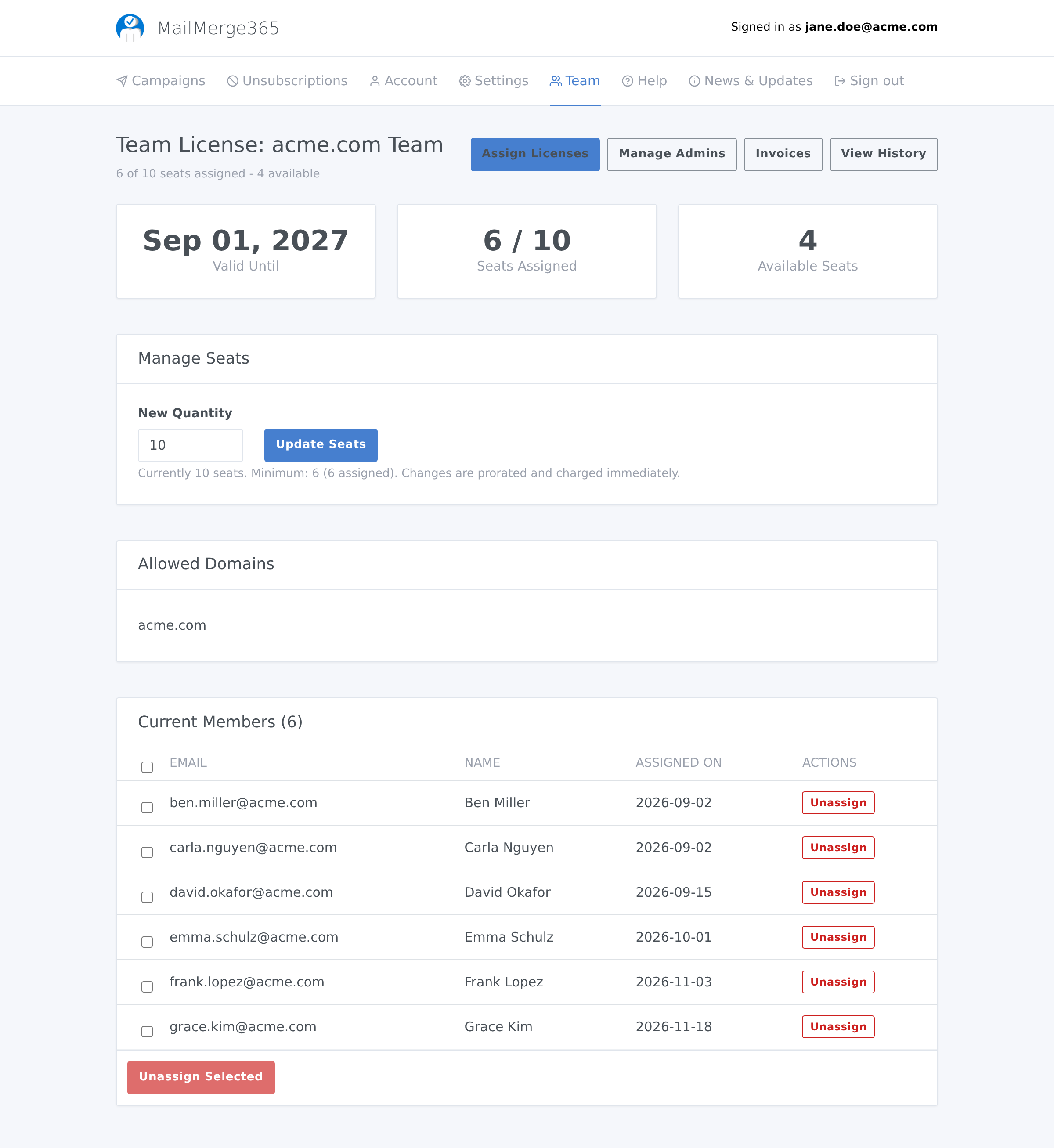
At the top you see:
- Valid Until: the date your current billing period ends. Paid seats work until this date. A badge appears when the license is about to expire or has expired.
- Seats Assigned: how many seats are in use out of the total.
- Available Seats: how many seats you can still give out.
Below that:
- Manage Seats: change how many seats you pay for.
- Allowed Domains: the email domains you can assign seats to.
- Current Members: everyone who has a seat, with the date they got it.
The buttons at the top right take you to the other team pages: Assign Licenses, Manage Admins, Invoices and View History.
Give colleagues a seat
Before you start, ask each colleague to sign in to MailMerge365 once at https://app.mailmerge365.com. You can only assign a seat to someone who already has a MailMerge365 account.
- On the team dashboard, select Assign Licenses. The button is grayed out when no seats are left.
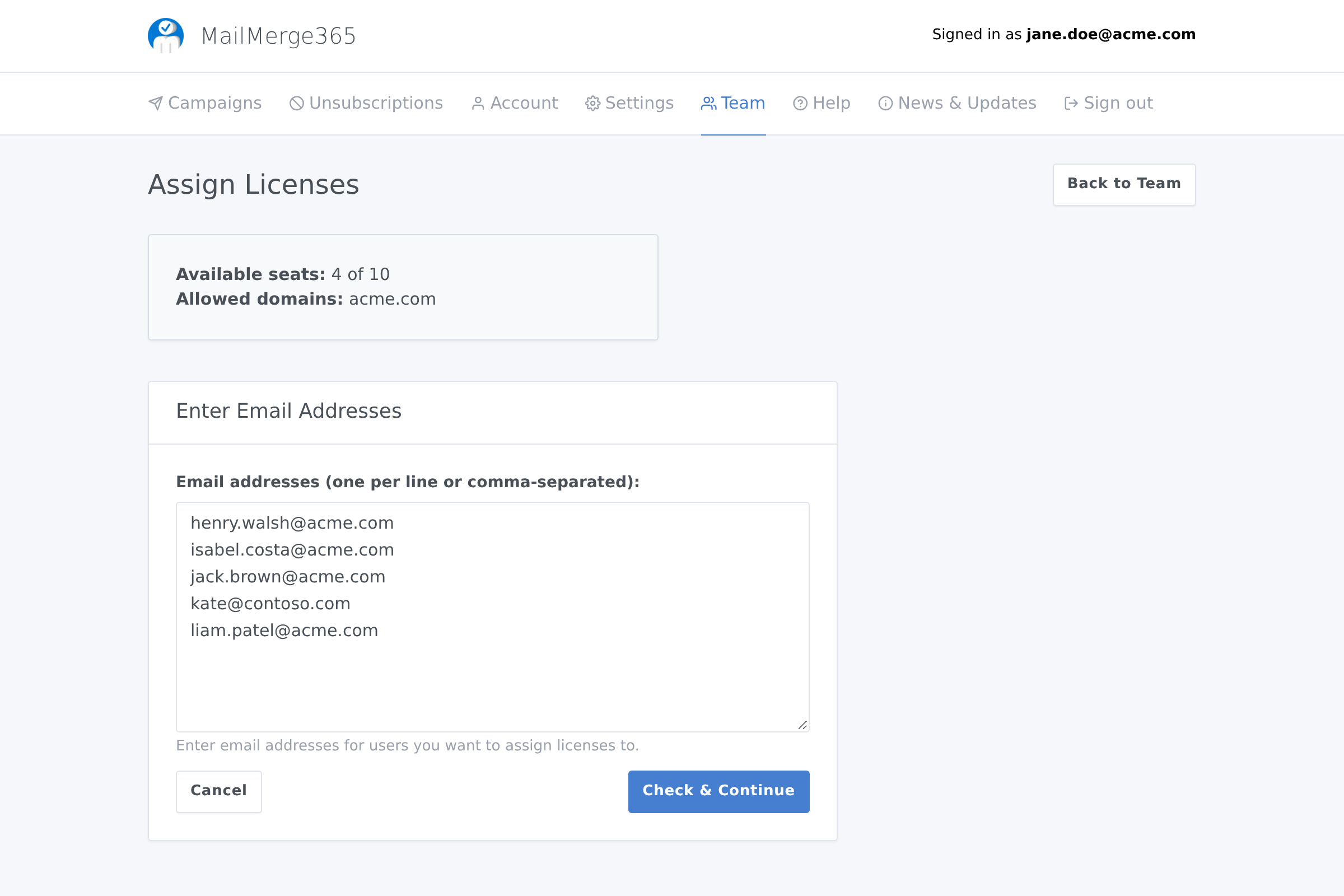
- Enter your colleagues' email addresses, one per line or separated by commas.
- Select Check & Continue.
MailMerge365 checks every address and sorts them into groups before anything changes:
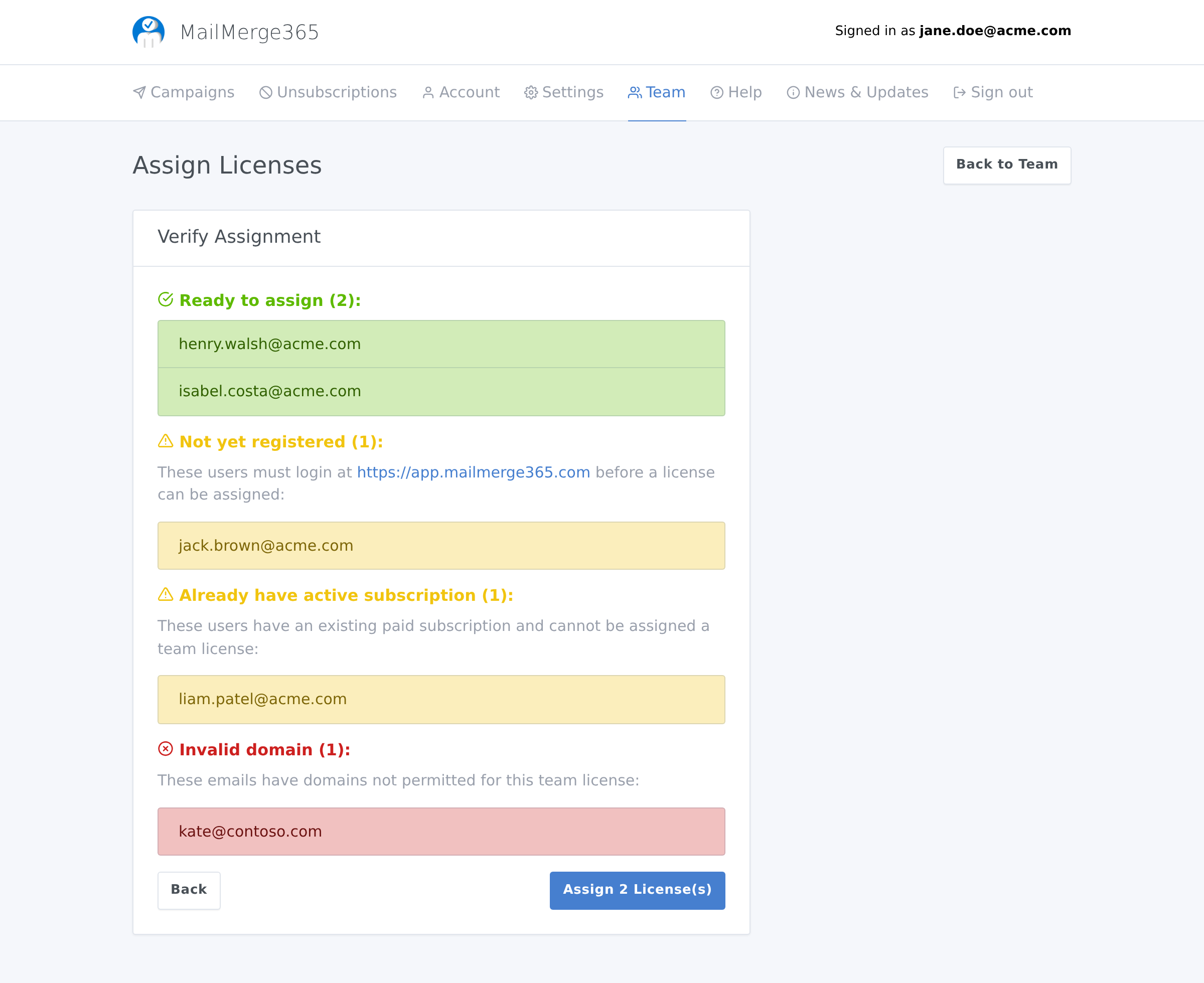
| Group | What it means | What to do |
|---|---|---|
| Ready to assign | These people will get a seat. | Nothing. Continue. |
| Not yet registered | This person has never signed in to MailMerge365. | Ask them to sign in once at https://app.mailmerge365.com, then assign them again. |
| Already have active subscription | This person already pays for their own MailMerge365 subscription. | They need to cancel their own subscription and wait for it to end before you can assign them a seat. |
| Invalid domain | The email address isn't on your team's allowed domain. | Check the spelling. To add another domain, contact support. |
| Already assigned to this team | This person already has a seat on your team. | Nothing. |
| Already assigned to another team | This person has a seat on a different team license. | Ask that team's administrator to remove them first. |
If you entered more ready-to-assign addresses than you have free seats, MailMerge365 tells you so and won't continue. Remove some addresses, take seats from other people or add seats first.
- Select Assign n License(s). Only the people under Ready to assign get a seat. Their premium access starts right away and lasts until the team's Valid Until date.
Take a seat away
When someone leaves or no longer needs MailMerge365:
- To remove one person, select Unassign next to their name in Current Members and confirm.
- To remove several people, tick the boxes next to their names and select Unassign Selected.
Their premium access ends immediately. The seat becomes free, and you can give it to someone else. Unassigning someone doesn't lower your bill. To pay for fewer seats, also reduce the seat count (see below).
Add or remove seats
Use Manage Seats on the team dashboard:
- Enter the new number of seats under New Quantity.
- Select Update Seats and confirm.
Seat changes are prorated and charged right away. You can't go below the number of seats currently assigned. To reduce further, unassign people first.
> Note: Manage Seats and Invoices are only shown for team licenses paid by online subscription. If you don't see them, contact support to change your seat count.
Add other administrators
Add a second administrator so someone can manage the team when you're away.
- On the team dashboard, select Manage Admins.
- Enter your colleague's email address and select Add administrator.
 The new administrator:
- must have an email address on your team's allowed domain,
- must have signed in to MailMerge365 at least once, and
- can't already administer another team.
All administrators have the same rights. To remove an administrator, select Remove next to their name. You can't remove yourself (ask another administrator to do it), and a team always keeps at least one administrator.
Being an administrator doesn't include a seat.
See who changed what
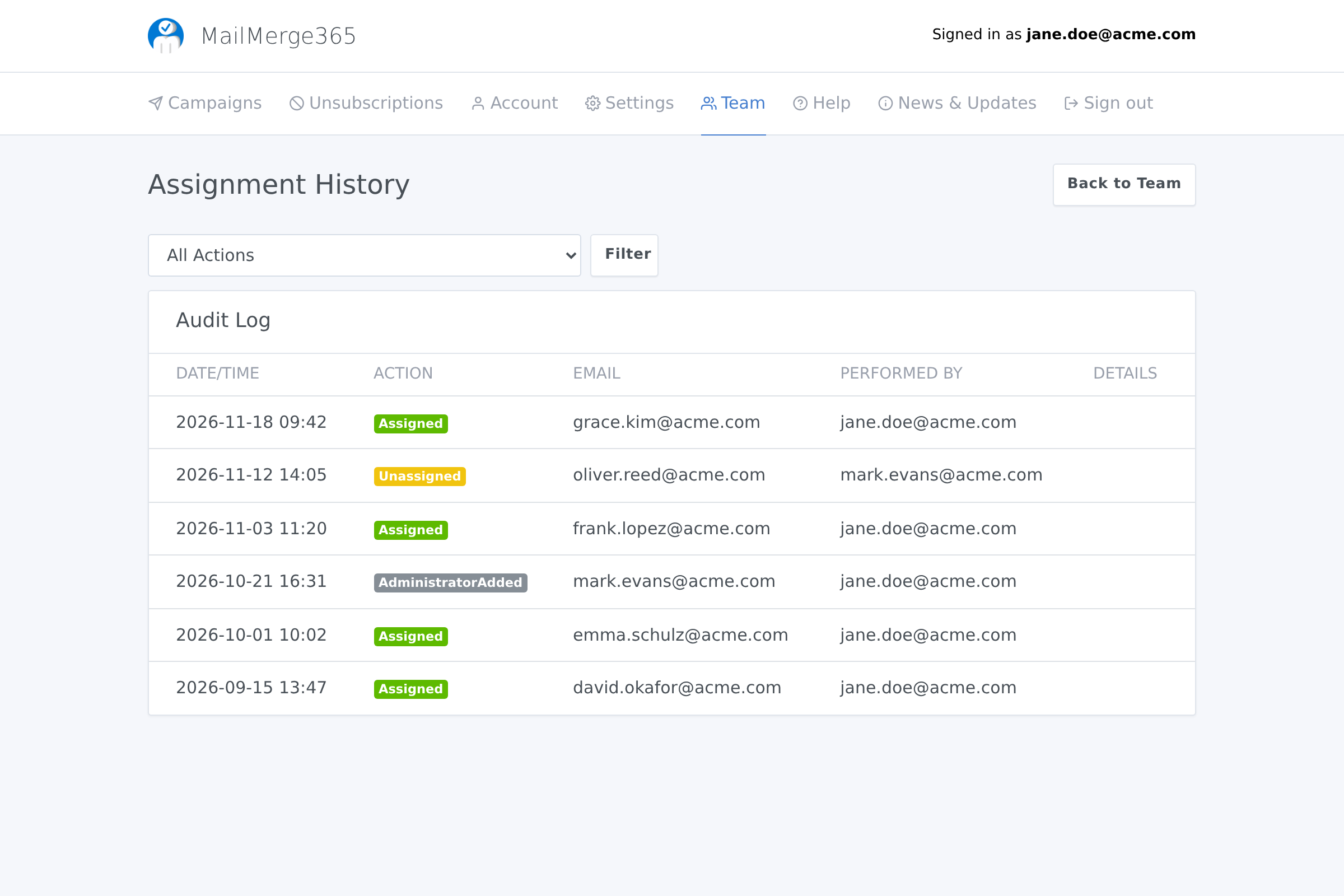
Select View History on the team dashboard to see a log of every change to your team: who was assigned or unassigned, when, and by which administrator. Attempts that were blocked, such as an address on the wrong domain, are logged too. Use the filter at the top to show one kind of change.
Invoices and receipts
Select Invoices on the team dashboard to see every payment, refund and subscription change for your team license. Select Receipt on a payment to open or download its receipt.
Renewal and cancellation
- Renewal. Your team license renews automatically each year. When the payment goes through, the Valid Until date moves forward for the whole team, and everyone keeps their seat without you doing anything.
- Cancellation. If you cancel the subscription, it doesn't renew. Everyone with a seat keeps premium access until the Valid Until date, then loses it.
Troubleshooting
I don't see the Team tab. The Team tab is only shown to team administrators. If you should be an administrator, ask another administrator of your team to add you, or contact support.
A colleague shows up as "Not yet registered", but they use MailMerge365. Make sure you entered the exact email address they sign in with. Some people have more than one address (for example j.doe@acme.com and jane.doe@acme.com).
I need to assign people on a second domain (for example a subsidiary). Contact support. We can add more allowed domains to your team license.
Someone with a seat says they don't have premium features. Check that they appear under Current Members on your team dashboard, and that the Valid Until date hasn't passed.
I want to hand the team over to a colleague. Add them as an administrator, then ask them to remove you.
Still stuck? Contact our support team.